
Windows
Holder for Windows
Download the Windows installer, or build Holder yourself while the Windows signing pipeline is being finished.
Signed Release Builds Are Coming Soon
Holder is more transparent than most software on your system. All the source code is public, you can build it yourself, and public GitHub workflows take it from source to installer.
Getting those workflows to produce trusted Windows installers requires a few more hoops. Good that modern Windows takes security seriously, but the developer experience is... (think of a polite word)... fragmented.
Apple has straightforward notarization and Linux established package signing. Meanwhile, Windows has a pile of parts we have to fit together: Authenticode, SmartScreen, Store certification and several packaging formats.
The goal is for every Windows release to be Authenticode-signed by a trusted certificate authority and eventually pass Microsoft Store certification. After all that bureaucracy, we might even avoid the blue window of moan.
For now, use a development build or compile Holder yourself.
Before You Install
The current Windows installer is a development build. Until the Windows release-signing pipeline is finished, Microsoft Defender SmartScreen will treat it as an unrecognised application and display:
Windows protected your PC
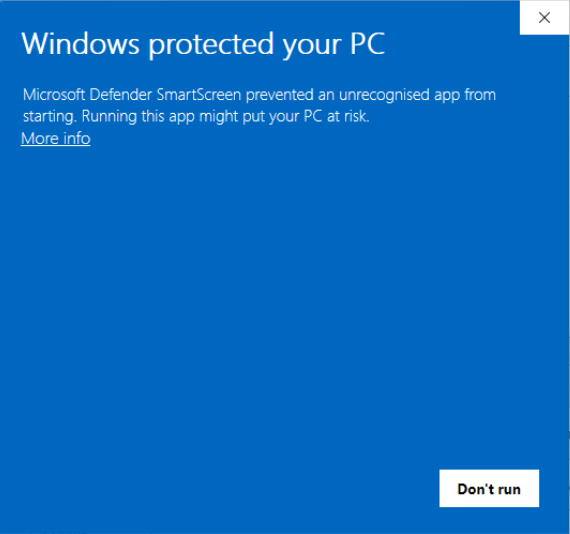
This does not mean that SmartScreen has detected malware in Holder. It means Windows does not trust the certificate used to sign these development builds, and the installer does not yet have normal publisher reputation.
If you've downloaded Holder from the official Holder project and want to continue, click More info, check that you're running the file you intended to download, and then choose Run anyway.
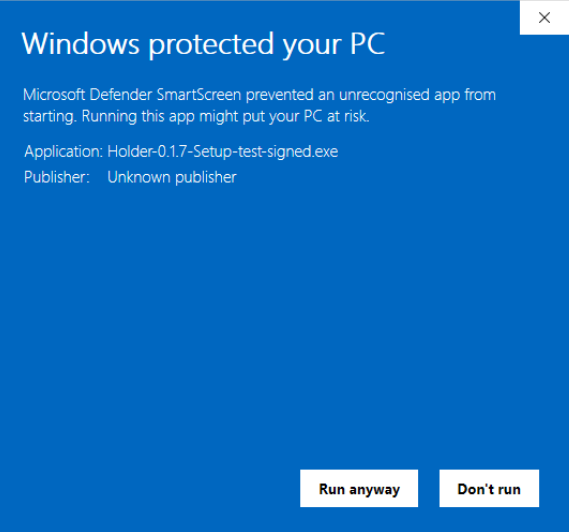
Install
Download the latest Windows installer from the Holder release page and run it. The installer includes the desktop app, the backend daemon and the command-line tool. The desktop app starts the backend itself when it needs it.
Keep the installer's Add the Holder command-line tools to PATH option, which is selected by default. It lets you run holderctl from PowerShell, which is useful both for normal command-line use and for fixing problems.
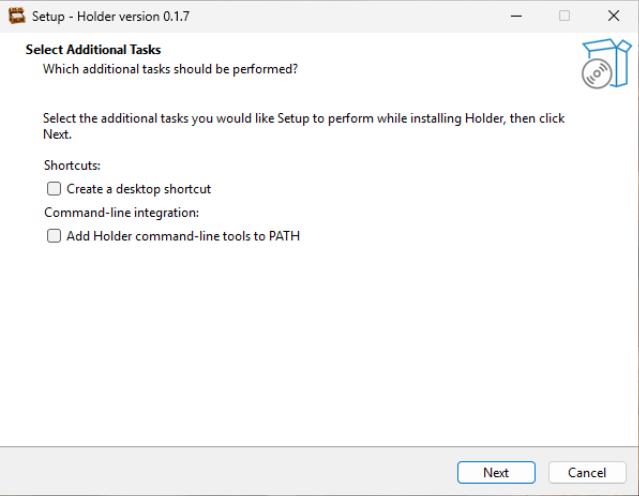
The installer copies the Holder programs and supporting files to your computer.
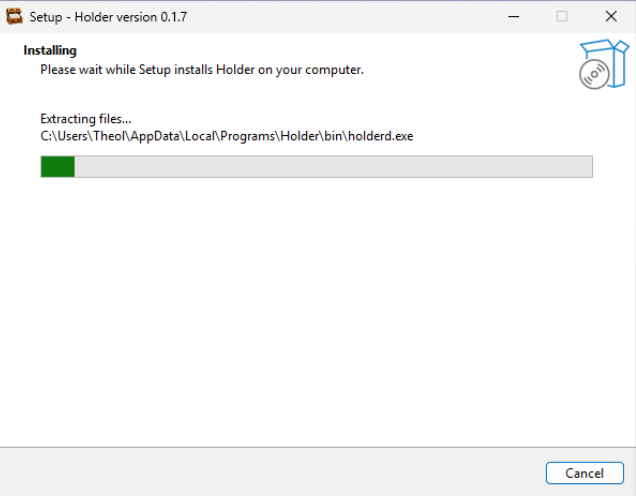
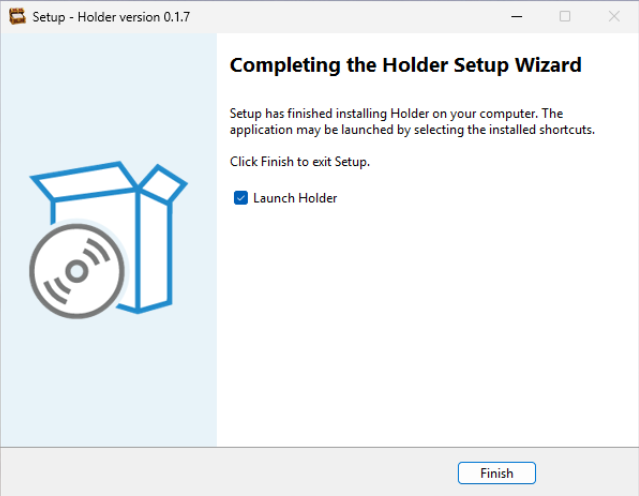
When the installer finishes, leave Launch Holder selected, or open Holder later from the Start menu.
Usage
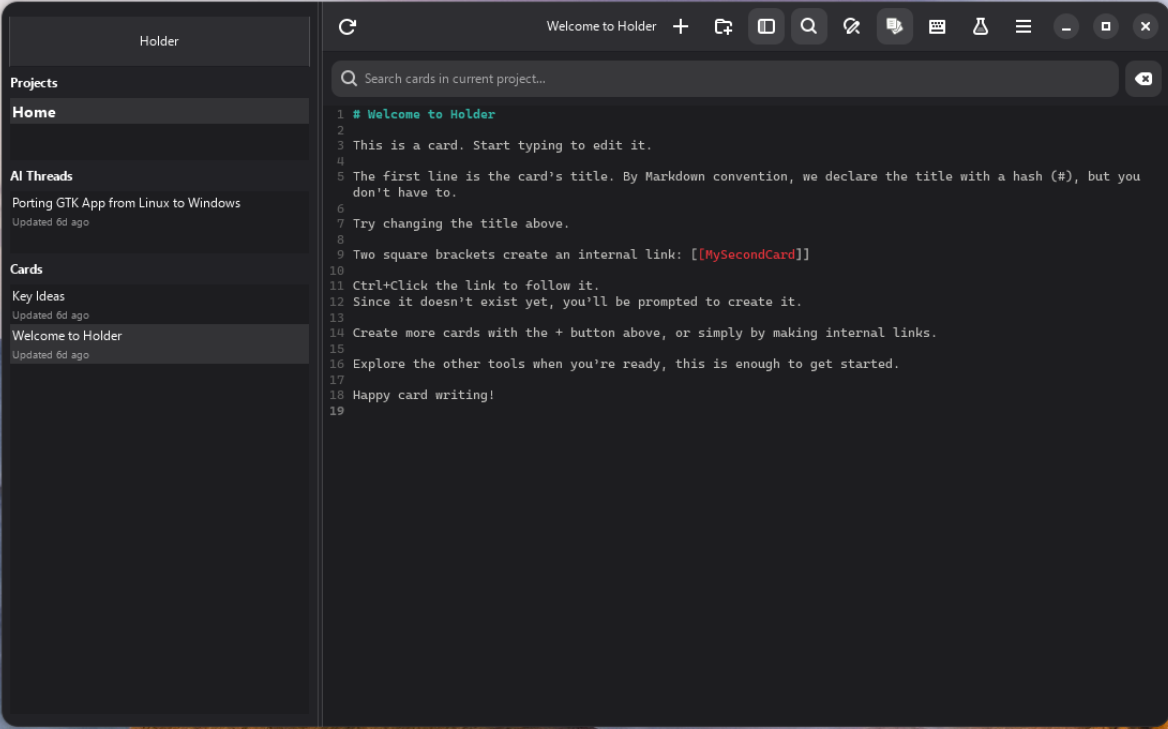
Holder opens with your projects and cards. By default you get a project called Home. Press the plus button to create a card, or the folder-plus button to create a project.
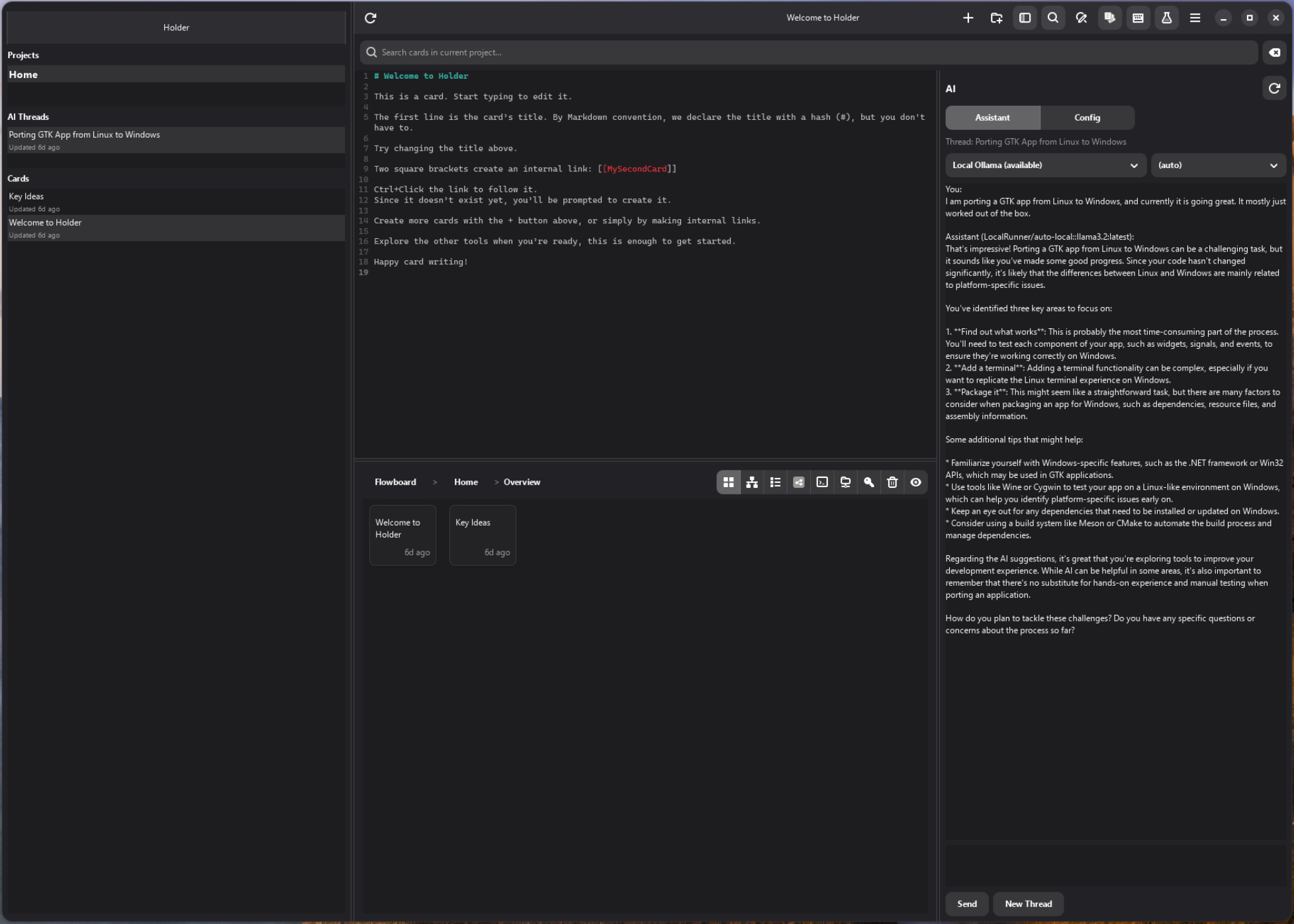
Press the beaker icon to open the toolbox, press the keyboard icon to open the AI panel.
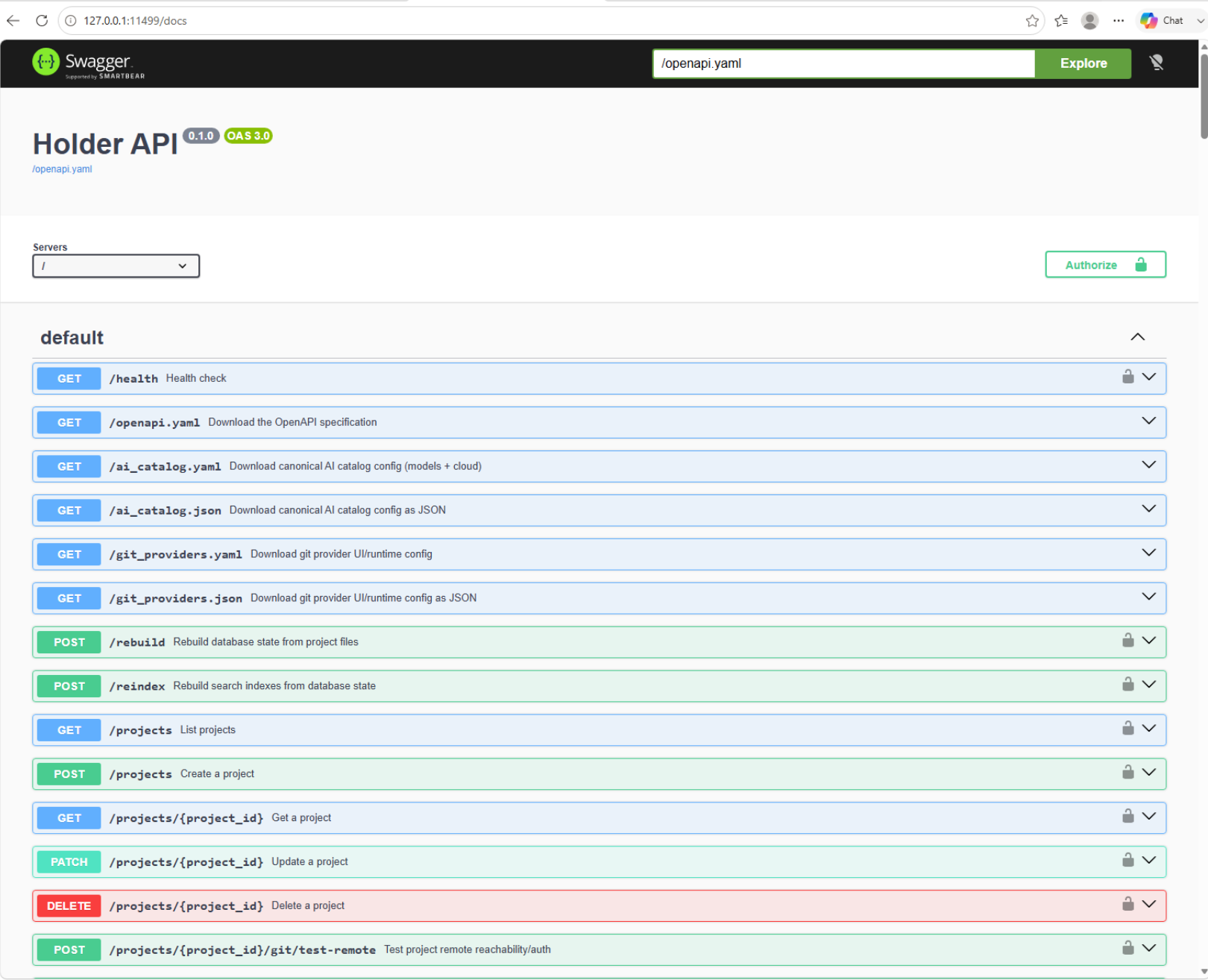
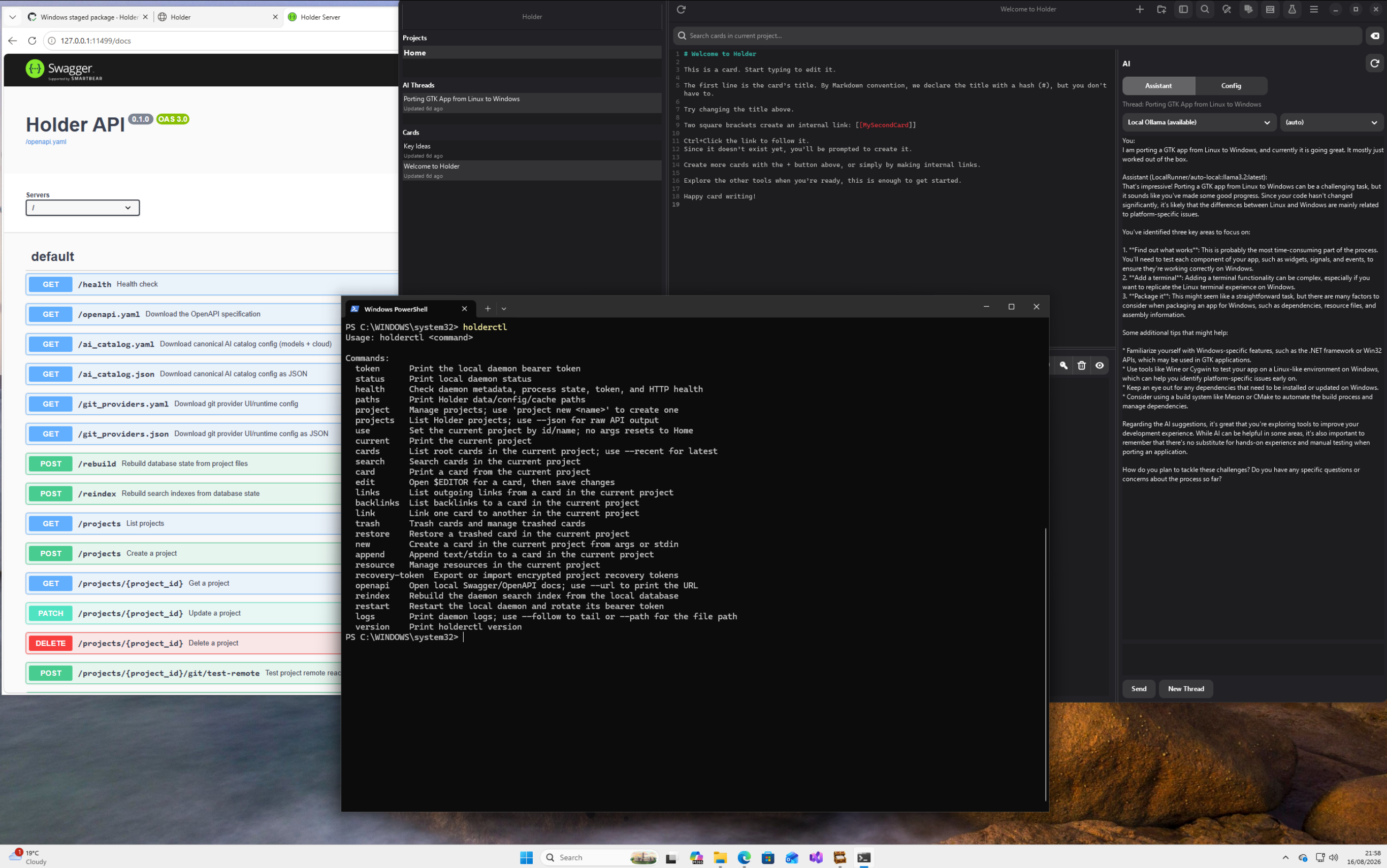
The local HTTP API is documented with Swagger UI.
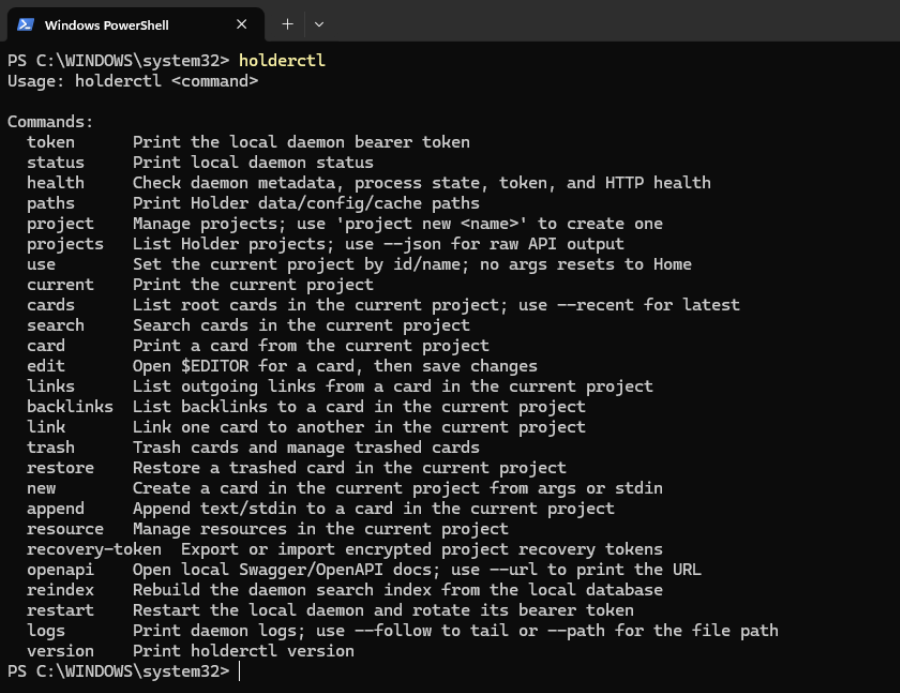
To access the command-line interface, type holderctl into PowerShell.
Holder Framework Edition gives you several ways to work with the same local knowledge base: the desktop app, the command line and the HTTP API.
Building From Source
Building from source on Windows uses Visual Studio for the backend and MSYS2 UCRT64 for the GTK desktop app. Follow the full Windows developer setup guide for the fresh-machine path, tests, and instructions for running both together.
- Install Visual Studio Community with the Desktop development with C++ workload.
- Install MSYS2 and open the UCRT64 shell.
- Clone the Holder repository, which holds the backend and the desktop app.
- Build and test the backend in Visual Studio.
- Build and test the desktop app in MSYS2 UCRT64, then start it with the backend running.