
macOS
Holder for macOS
Download the Holder disk image, drag Holder into Applications, then open it like a normal Mac app.
Install
Download the Holder disk image (.dmg) and open it.
A small window will appear containing Holder and an Applications folder. Drag the Holder icon onto the Applications folder. This copies Holder.app into your Applications folder.
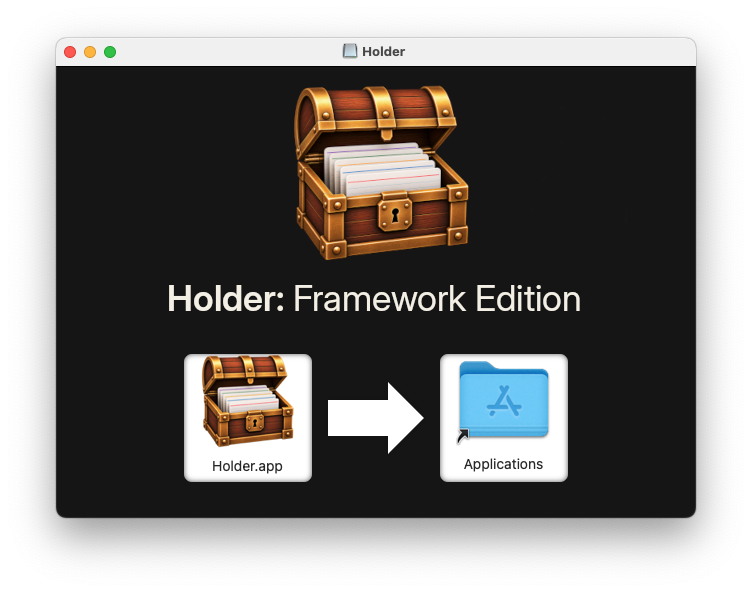
You can then close the window and eject the Holder disk image.
Open Finder, select Applications, and double-click Holder.
The first time you run Holder, macOS will tell you that the application was downloaded from the internet and ask whether you're sure you want to open it. Click Open.
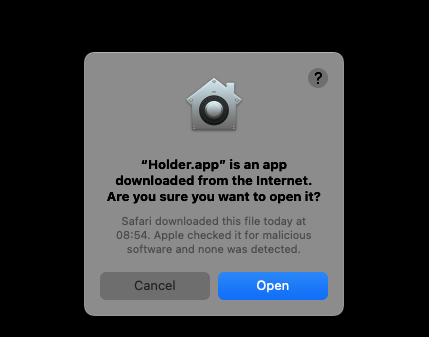
That's it. On subsequent launches you can open Holder normally from Applications, Spotlight or the Dock.
Getting Started
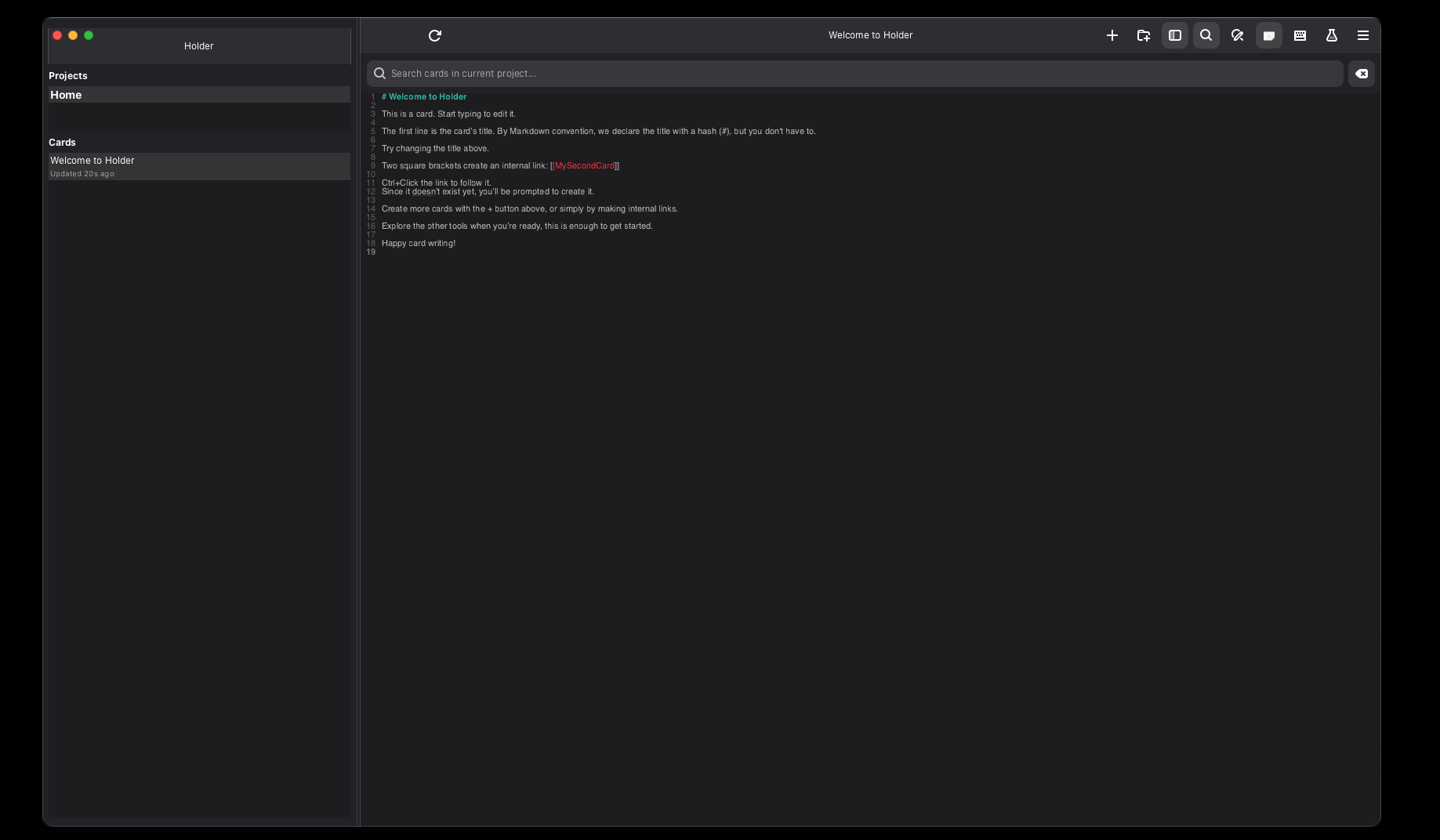
Holder opens with your projects and cards. By default you get a project called Home. Press the plus button to create a card, or the folder-plus button to create a project.
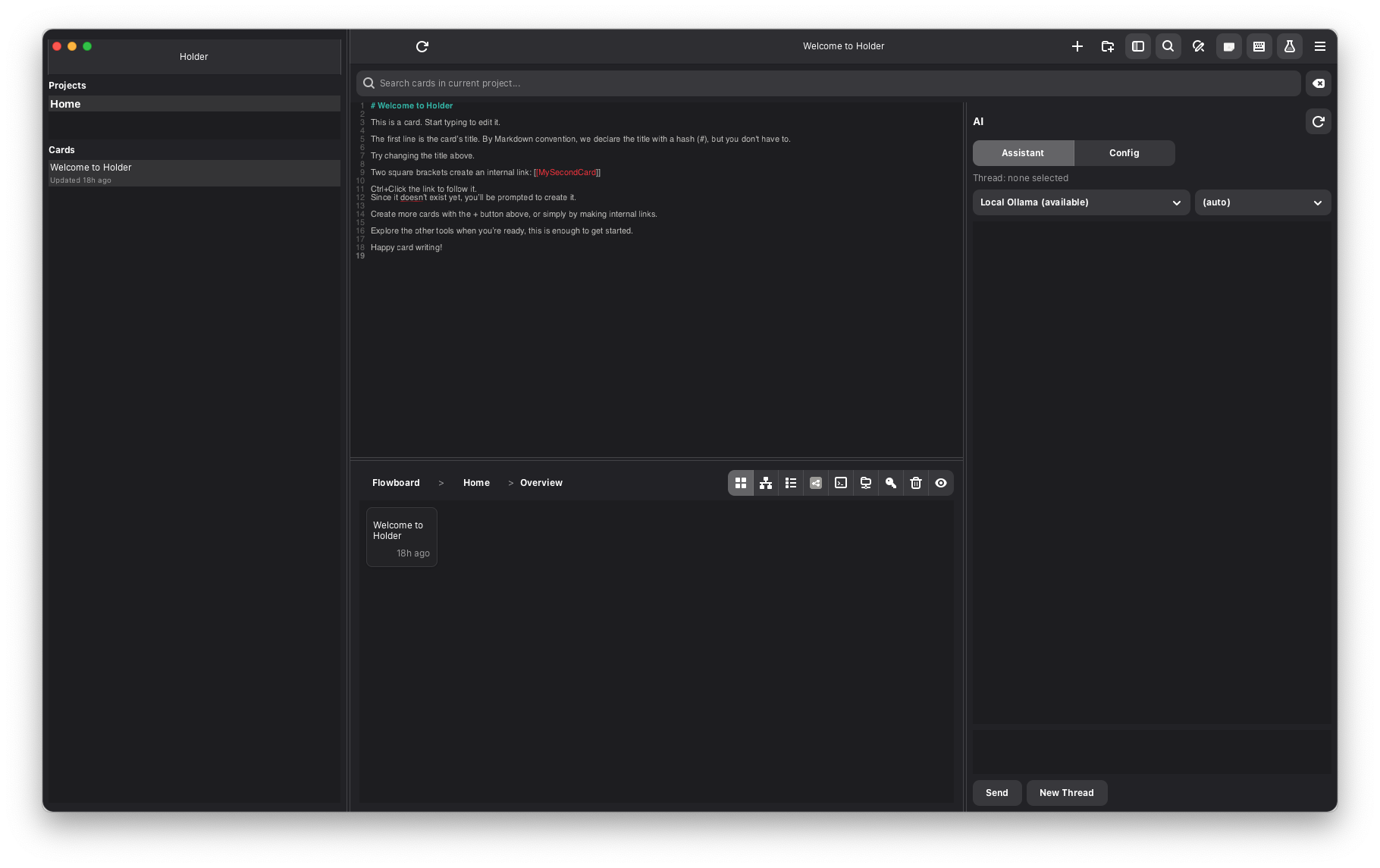
Press the beaker icon to open the toolbox, press the keyboard icon to open the AI panel.
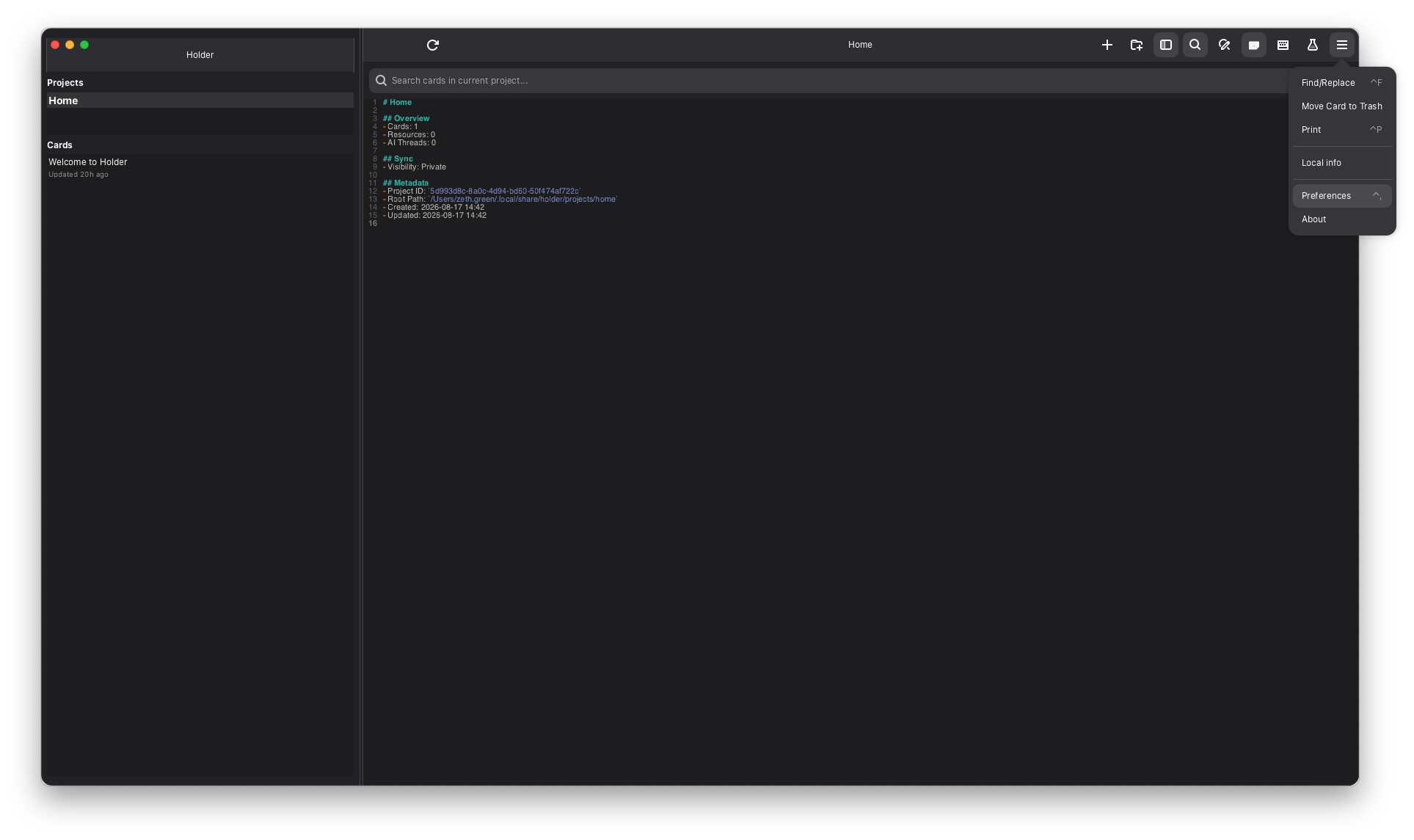
To change appearance, open the hamburger menu and choose Preferences.
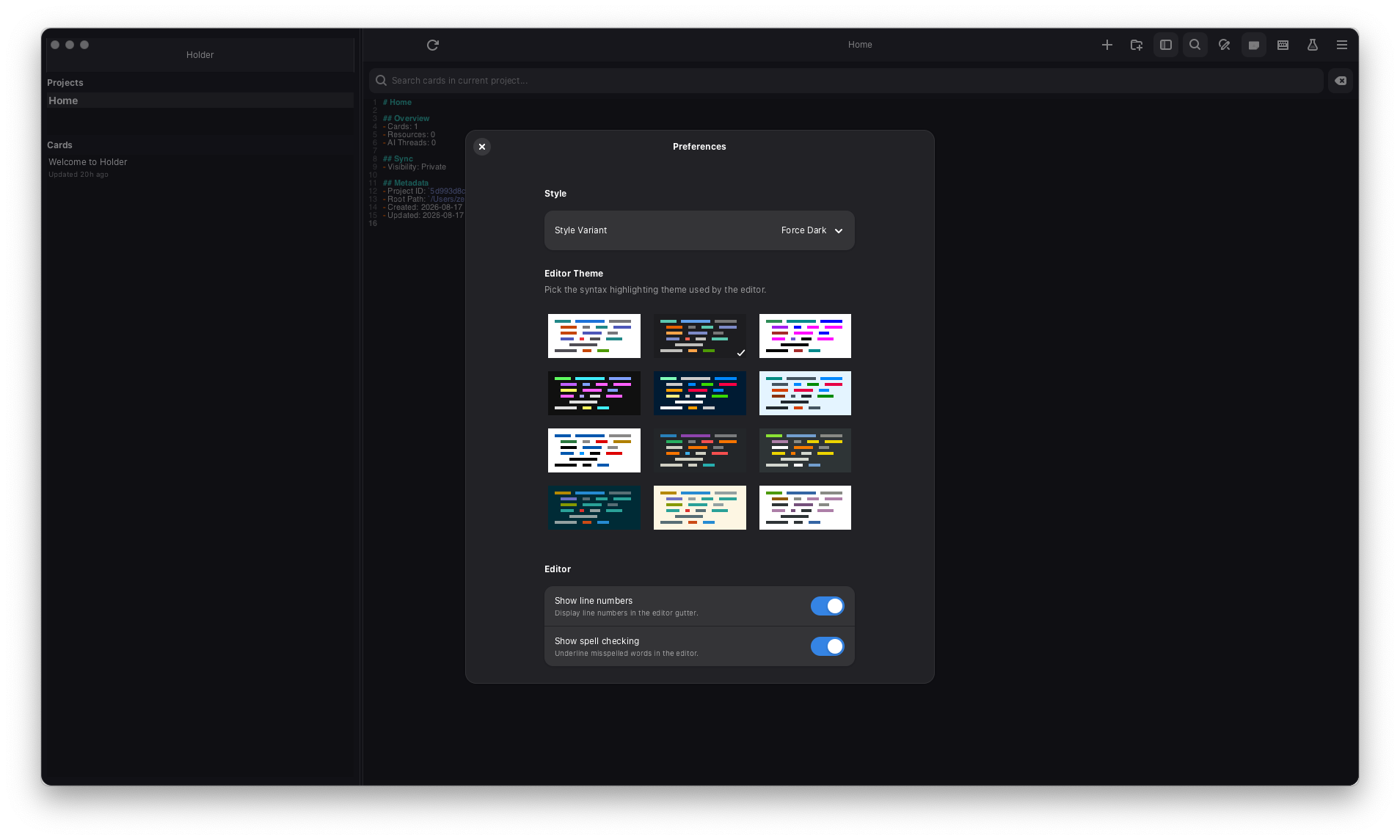
Then you can change the window style and the card editor theme.
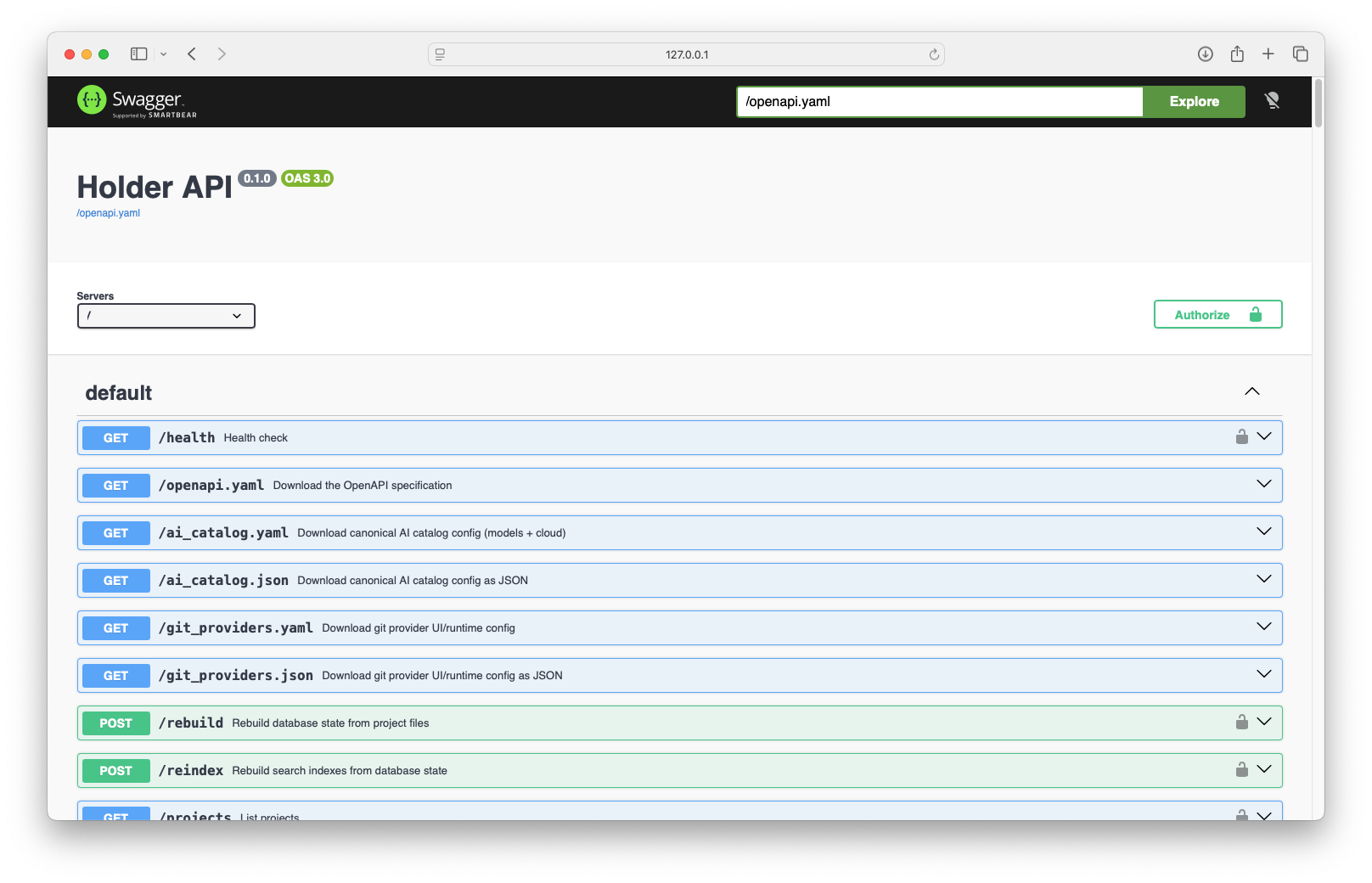
Holder Framework Edition gives you several ways to work with the same local knowledge base: the desktop app, the command line and the HTTP API.
The local HTTP API is documented with Swagger UI.
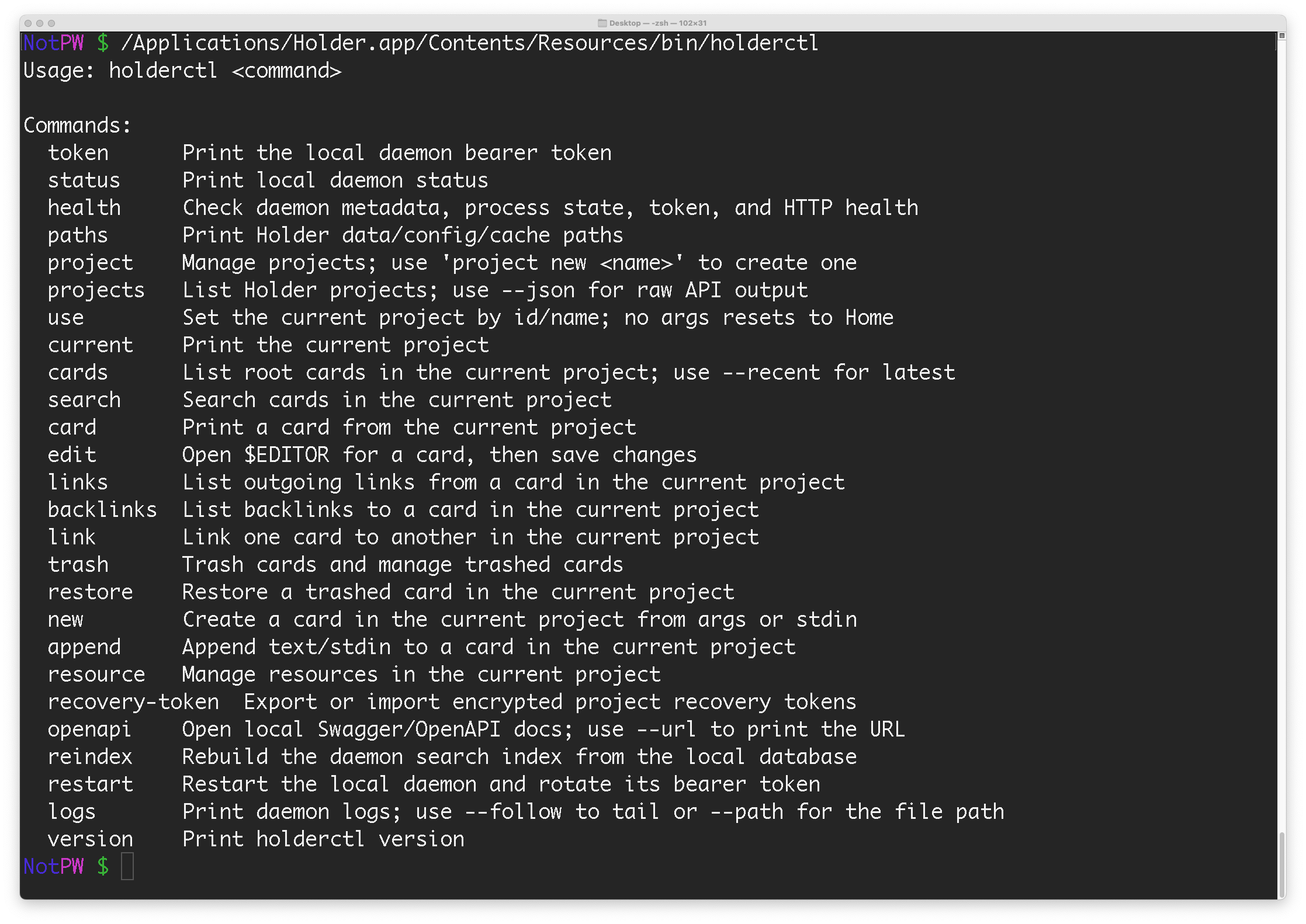
The command-line tool is bundled with the app. For now, you can run it from Terminal with /Applications/Holder.app/Contents/Resources/bin/holderctl.
Building From Source
macOS source builds currently use Homebrew for dependencies. The packaged app is assembled from the backend and the desktop app, which are both in the holder repository.
- Install Xcode Command Line Tools and Homebrew.
- Clone Holder:
git clone https://github.com/HolderTeam/holder.git. - In
holder/daemon, install the Homebrew dependencies listed in the README, then run./make.sh. - In
holder/apps/desktop/gtk, install the Homebrew dependencies listed in the README, then runmeson setup build-macos --prefix=/,meson compile -C build-macos, andmeson test -C build-macos --print-errorlogs. - Run
./build-macos/holder-desktoponly after the backend is already running.